How to use Tare
A complete guide to tracking your nutrition with Tare. No account needed — just download and start logging.
Tare is a tracking tool, not a source of medical or dietary advice. Nutrient suggestions and absorption tips are for informational purposes only. See our Terms of Use for details.
Getting Started
When you first open Tare, you'll walk through a short onboarding flow to set up your profile — weight, height, age, sex, and activity level. Tare uses these to calculate your BMR (basal metabolic rate) and TDEE (total daily energy expenditure), which power your calorie goal suggestions. You'll also pick a fitness goal (lose fat, maintain, build muscle, or athletic) and optionally set a goal weight. Your water intake goal is auto-calculated from your body weight (~30ml per kg).
After onboarding, you'll land on the Daily Log — your home screen. From there you can start logging food immediately.
You can revisit your profile settings and adjust your goals at any time in the Profile tab — your targets are in Profile → Goals.
Daily Log
The Daily Log is organized by meal category. By default, you'll see Breakfast, Lunch, Dinner, and Snack, but you can create your own categories. Each section shows the foods you've logged with their calorie count.
At the top, you'll see your calorie summary card with a progress bar and macro breakdown (protein, carbs, fat). The colors change as you approach your goals:
- Orange — under 70% of your calorie goal
- Light green — 70–90%
- Green — 90–100%, right on target
- Red — over 100% of your calorie goal. Macro bars keep their own colors and never turn red.
Each entry shows its full macro breakdown (protein, carbs, fat, fiber) inline — no tapping needed. Swipe left to delete, swipe right to edit.
Tap the chevron below the macros to expand and see fiber, sugar, and pinned nutrients with percentage of your daily target — pick up to six; iron, calcium, vitamin D and vitamin C are there to start. Tap "View all micronutrients" to see the full breakdown of 22 vitamins and minerals.
The Daily Log also shows your water tracking card and a weight pill displaying your current weight at the top.
From the ellipsis menu (⋯) you can copy the previous day, mark the day as untracked so it doesn't pull your averages down, or Ask AI: Tare writes a question about your day or week and opens it in the assistant you choose, once you have read it. The menu on a meal or an entry has Copy to, for another meal or another day, and a meal's menu has Paste. Reports has a tab of its own.
Meal Categories
By default, Tare organizes your log into Breakfast, Lunch, Dinner, and Snack. You can create your own categories to match how you actually eat — for example, "Pre-Workout", "Second Breakfast", or "Evening Snack".
Go to Profile → Meal Categories to manage them. For each category, you can set:
- Name — whatever you like
- Color — pick from a color grid
- Icon — choose an SF Symbol
- Time range (optional) — set a start and end hour, and Tare will auto-suggest that category when you log food during those hours
Categories can be reordered with drag-and-drop — the order in Profile matches the order in your Daily Log.
To edit a category, tap it. To delete one, swipe left — you'll be asked whether to reassign its entries to another category or delete them.
The four built-in categories (Breakfast, Lunch, Dinner, Snack) can be customized but not deleted.
Searching for Food
Tap "Add" under any meal to open the food search. You'll see several default sections:
- Favorites — foods you've starred for quick access
- Recent — the last foods you've logged
- Templates — your saved meal templates for one-tap logging
- Recipes — your saved recipes, ready to log a portion
Start typing to search. Tare looks in three places: everyday foods built into the app (in English, Russian, Ukrainian, Polish and Spanish, and searchable offline), USDA FoodData Central, and Open Food Facts for branded products. Results show the food name, source, and per-100g calories with macro chips (P/C/F).
Tare caches foods locally after the first search, so looking up something you've used before is instant — no network request needed.
Barcode Scanner
Tap the camera icon in the food search to open the barcode scanner. Point your camera at any food or supplement barcode — Tare looks it up in Open Food Facts and USDA's branded foods. You can also scan from the Foods tab.
The scanner includes a torch toggle for dark environments and a "Enter barcode manually" option if the barcode is damaged or hard to focus on.
If the product is found, you'll go straight to the logging screen with all nutrition info pre-filled. If not, you can:
- Search manually — go back to text search
- Add manually — opens the standard Custom Food form with the barcode pre-filled. Enter the product's name and nutrition facts. The food appears in My Foods and is found instantly on future barcode scans
Scanned products are cached locally, so the same barcode won't need a network request next time. The viewfinder flashes green on a successful scan.
Nutrition Label Scanner
When creating a custom food, tap "Scan Label" in the Nutrition per 100g section header to open the camera. Point it at a nutrition facts label and take a photo — Tare reads the text using on-device OCR and extracts calories, protein, carbs, fat, fiber, serving size, and the four FDA-required micronutrients (Vitamin D, Calcium, Iron, Potassium) automatically.
Everything runs locally via Apple's Vision framework — no photo is uploaded and no image is saved. The photo is used only for text recognition and discarded when you leave the screen.
After scanning, you'll see a review screen where you can:
- Verify and edit any value the scanner extracted
- Toggle between "per serving" and "per 100g" — if the label shows per-serving values and a gram weight is detected, Tare converts to per 100g automatically
- Retake the photo if the results aren't right
Tap "Use These Values" to populate the custom food form. You can still adjust any field before saving.
Tips for best results:
- Tap the preview to focus on the label text — especially helpful for small labels
- Use the torch toggle in low light
- On iPhone 13 Pro and later, the camera automatically switches to macro mode for close-up labels
- Flatten the label if it's on a curved surface — this improves text recognition
Logging a Meal
When you select a food, the Log Food screen appears with:
- An amount input with +/− buttons that adjust in smart steps (1g under 10g, 5g under 50g, 10g above)
- A unit picker (grams, ounces, ml, or serving). When you select "serving", Tare shows what one serving equals (e.g. "1 serving = 30g") based on data from USDA or Open Food Facts
- A meal picker (pre-selected based on where you tapped "Add")
- A live nutrition panel that updates as you adjust the amount
All nutrition math is calculated from per-100g values, so changing units automatically converts everything accurately.
Tap the star icon to add the food to your favorites. Then tap "Add" to log it.
To edit a logged entry, swipe right on it in the Daily Log. You can change the amount, unit, or meal without re-searching for the food.
Custom Foods
Your own foods take priority over every public database. In the food search, tap "Custom Food" and enter:
- Name and optional brand
- Serving size and unit
- Nutrition values per serving or per 100g — protein, carbs, fat, and optionally fiber. Use the toggle to enter values exactly as printed on the label. Calories can be auto-calculated from macros or entered manually
You can also add micronutrient data — tap "Micronutrients" to open a sheet where you can enter vitamins and minerals. This is especially useful for supplements like electrolyte mixes where the micronutrients are the whole point.
Three ways in
- From scratch — for anything you can't find
- From a failed scan — when a barcode returns nothing, "Add manually" opens this form with the barcode already attached
- From an existing entry — when a database result is wrong, create your own copy from it, correct the numbers, and keep the barcode
Why the barcode matters
Barcode lookup checks your foods first, before Open Food Facts and before the USDA. So once you've attached a barcode to your own version, every future scan of that product returns your numbers instead of the database's — permanently, and only for you. Nothing is submitted anywhere. Custom foods also rank above USDA entries in text search.
This is the fix for the usual problem with crowd-sourced food data: entries that are wrong, missing micronutrients, or listing a serving size nobody uses. You correct it once.
Custom foods appear in the My Foods segment of the Foods tab and can be edited or deleted at any time. They sync via iCloud like everything else.
Recipes
Go to the Foods tab and switch to the Recipes segment. Tap "+" to create a new recipe.
In the Recipe Builder:
- Give your recipe a name and optional notes
- Add ingredients by searching the food database
- Set the amount for each ingredient
- Optionally enter the cooked weight — if left blank, Tare uses the sum of raw ingredient weights
The recipe shows live totals (total calories, protein, carbs, fat) and per-gram values (cal/g, protein/g, etc). This is especially useful for batch cooking — enter the total cooked weight, then log individual portions by weighing your plate.
To log a portion, open Add from the Daily Log and pick the recipe from your list — enter the weight in grams, pick a meal, and you'll see a live macro preview before you tap Add.
Each section also shows a "Micronutrients" row — tap it to see the vitamin and mineral breakdown for the total recipe, per 100g, or per serving.
Recipes can be edited later — adding or removing ingredients automatically recalculates all values.
Meal Templates
If you eat the same meals regularly, templates let you log them in one tap instead of adding each food individually.
Creating a template:
- Go to Foods → Templates and tap "+"
- Or in the Daily Log, tap the section menu (⋯) on any meal and choose "Save as Template" — this pre-fills the template with that meal's entries
In the Template Builder, give it a name and add foods by searching the database. Each item shows its portion size and nutrition. You'll see live totals (calories, protein, carbs, fat) at the bottom.
Logging a template:
- Find your template in the food search (they appear in the Templates section, favorites first) or in Foods → Templates
- Before logging, you can adjust individual item quantities or exclude items — for example, skip the toast but keep the eggs
- Pick a meal category and tap "Log Meal"
Template entries appear grouped in the Daily Log under a collapsible sub-header with a template badge, so you can see which entries came from the same template.
You can favorite templates for faster access and edit them at any time from the Foods tab.
Setting Goals
Your targets live in Profile → Goals, which also shows today's progress against them. You can set goals for:
- Calories (auto-calculated from your macro targets, or set manually)
- Protein (g)
- Carbs (g)
- Fat (g)
- Fiber (g)
- Water (ml or fl oz)
- Micronutrient targets (tap "Micronutrient Targets" to set goals for 22 vitamins and minerals — defaults to FDA Daily Values, fully customizable)
There's also a net carbs toggle — when enabled, fiber is subtracted from carbs in your progress display.
When you save new goals, Tare creates a new goal record effective from today. Your historical logs still reference the goals that were active when you logged them, so changing goals doesn't rewrite your history.
Tip: Tare calculates your TDEE and suggests targets based on your fitness goal. When you change your weight, activity level, or fitness goal in Profile, Tare will offer to update your macro targets automatically. Daily weight logging also silently adjusts targets in the background when the change is meaningful.
Micronutrients
Tare tracks 22 vitamins and minerals automatically using data from the USDA and Open Food Facts databases. No extra work needed — when you search for or scan a food, micronutrient data is extracted alongside macros. Caffeine and alcohol are tracked too, each with a daily limit you set.
What's tracked
- Vitamins — A, C, D, E, K, Thiamin (B1), Riboflavin (B2), Niacin (B3), B6, Folate (B9), B12, Choline
- Minerals — Sodium, Calcium, Iron, Magnesium, Phosphorus, Potassium, Zinc, Selenium, Copper, Manganese
- Fat breakdown — Cholesterol, Trans Fat, Monounsaturated Fat, Polyunsaturated Fat
Where you'll see micronutrients
- Daily Log — expand the calorie card to see the nutrients you pinned (up to six; iron, calcium, vitamin D and vitamin C to start) with percentages. Tap "View all micronutrients" for the full breakdown
- Logging a food — tap "Micronutrients" to see the vitamin and mineral content for your portion
- Editing an entry — same micronutrient preview, scaled to your amount
- Recipes — micronutrient totals shown per recipe, per 100g, and per serving
- Templates — micronutrient totals shown when building or logging a template
- Nutrient detail — open any nutrient and the sheet links to its page on supp.fit: what it does, the studies behind it, and which supplements close the gap
Targets
Micronutrient targets default to FDA Daily Values — the recommended intake for adults. You can customize any target in Goals → Micronutrient Targets. Each nutrient shows the FDA recommendation as a reference, and a "Reset all to FDA recommended" option is available if you want to start fresh.
Progress bars use simple color coding:
- Muted — below 80% of target
- Green — 80% or above (you're on track)
- Red — only when exceeding the Upper Limit (UL) for nutrients where overconsumption is a concern, like Vitamin A or Iron
Custom foods and supplements
When creating a custom food or supplement, tap "Micronutrients" to add vitamin and mineral data. This is especially useful for electrolyte mixes, multivitamins, and other supplements where micronutrients are the primary content.
The nutrition label scanner also extracts the four FDA-required micronutrients (Vitamin D, Calcium, Iron, Potassium) automatically.
Data availability
Micronutrient data coverage depends on the food source:
- USDA generic foods (e.g. "Banana, raw") — excellent coverage, most nutrients available
- USDA branded foods — varies; many only report what's on the label
- Open Food Facts — varies by product; user-submitted data may be incomplete
- Custom foods — only what you enter manually
Missing data shows as "—" rather than zero, so you can tell the difference between "not tracked" and "genuinely none".
Nutrient Suggestions
When a micronutrient is below target, Tare can suggest foods to close the gap — ranked by what you actually eat, not generic "top 10" lists.
How to see suggestions
Open the micronutrient detail view (tap "View all micronutrients" in the calorie card). Any nutrient below ~90% of your target shows a chevron on the right. Tap it to open the suggestion sheet for that nutrient.
What you'll see
- Gap summary — how much you still need today, with a progress bar, plus how you averaged against the target over the past week
- What contributed — which foods actually supplied this nutrient, with the amount and the share each one provided. Useful for telling apart a nutrient you're missing entirely and one where a single food is doing all the work
- Ranked food list — personalized suggestions with serving size and a "closes X%" figure showing how much of the gap one serving covers
- Absorption tips — practical advice for improving absorption (e.g. "pair plant-based iron with vitamin C")
How ranking works
Each suggestion is scored by two factors, multiplied together:
- Contribution — how much of your gap one serving closes (capped so mega-doses don't dominate)
- Familiarity — how often you've eaten this food. Your recipes and templates rank highest, followed by foods you log frequently, then foods you've never tried
This means a lentil soup recipe you make weekly will rank above beef liver you've never cooked — even if liver has more iron per serving. The best suggestion is one you'll actually eat.
Reason badges
Each suggestion shows why it was picked:
- recipe / template — it's one of your saved meals
- custom — a food you created
- "12× logged" — how often you've eaten it in the last 90 days
- new — a USDA food you haven't tried yet but is nutrient-dense
Logging from suggestions
Tap Log on any food suggestion to open the standard logging flow with the amount pre-filled to the suggested serving. You can adjust the amount before saving.
Dietary preferences
If you set a dietary preference in Profile (Vegetarian, Vegan, or Pescatarian), foods that don't match are automatically filtered out. A vegan user will never see meat or dairy suggestions, regardless of nutrient density.
Absorption tips
Below the food list, Tare shows practical tips for the nutrient you're viewing. These come from a curated dataset of ~30 evidence-based rules covering enhancers and inhibitors:
- Iron — vitamin C enhances absorption; coffee/tea within an hour inhibits it
- Calcium — vitamin D helps absorption; high-oxalate greens (spinach) are less bioavailable than kale or bok choy
- Fat-soluble vitamins (A, D, E, K) — pair with a fat source for better absorption
- Zinc — phytates in beans and grains reduce absorption; soaking or sprouting helps
Tips are only shown when relevant — nutrients without known absorption interactions skip this section entirely.
Professional note
If a nutrient has been severely below target (>70% gap), Tare shows a gentle note suggesting a conversation with a doctor or dietitian. This is never alarmist — no red alerts, no diagnostic language. Nutrient gaps are nudges, not medical events.
Water Tracking
The Daily Log includes a water tracking card with quick-add buttons (250ml, 500ml) plus a "+" button for any custom amount. Your progress shows as a bar against your daily goal. Save the drinks you have often — coffee, tea, a shake — and add them in one tap; their nutrition is logged too.
Your water goal is auto-calculated during onboarding (~30ml per kg of body weight, rounded to the nearest 250ml). You can adjust it in Profile → Goals. Water is tracked in millilitres internally and displayed in ml or fluid ounces depending on your unit preference.
If Apple Health sync is enabled, water intake is also written to the Health app.
Weight Tracking
Tap the weight pill at the top of the Daily Log to log your current weight. Logging weight also updates your profile and silently recalculates your macro targets based on the new weight — no action needed.
Your weight history appears as a trend chart in Reports, with a dashed goal weight line if you've set one in your profile. The chart shows with as little as one data point.
Weight entries can also be imported from Apple Health — if you use a smart scale that writes to Health, Tare will pick those readings up automatically when weight sync is enabled. Manual entries in Tare always take priority over Health imports.
Adaptive TDEE
Most calorie calculators estimate your Total Daily Energy Expenditure (TDEE) using a formula based on your age, weight, height, and a self-reported activity level. This is a rough guess — it can be off by hundreds of calories. Tare's adaptive TDEE learns your actual expenditure by comparing what you eat to how your weight changes over time. (For the full reasoning behind the design, see how adaptive TDEE works.)
How it works
Every time you log your weight, Tare applies an Exponential Moving Average (EMA) to smooth out daily fluctuations from water, sodium, and digestion. This creates a reliable trend line from noisy day-to-day readings.
Using your weight trend and your food log, the algorithm back-calculates your real TDEE: if you're eating 2,000 calories per day and your weight trend is dropping by 0.5 kg per week, your body must be burning approximately 2,550 calories per day. No activity tracker is required — though if you wear an Apple Watch, the Activity Bonus can add to today's target on your big days.
The three phases
The algorithm needs data to become accurate. It ramps up through three phases:
- Static Only (days 0–13): Uses the standard Mifflin-St Jeor formula with your activity level multiplier. The adaptive calculation hasn't started yet.
- Transition (days 14–27): Blends the formula estimate with the adaptive calculation. The adaptive weight increases each day, gradually shifting from formula to real data.
- Fully Adaptive (28+ days): Uses only your real data. The formula is retired. Your TDEE updates weekly based on the latest 28 days of food and weight data.
A progress indicator on the expenditure card in Reports shows your current phase and how many days until the algorithm is fully calibrated.
Weekly Check-In
Once per week (on a day you choose in Settings), Tare prompts you with a Weekly Check-In. This shows:
- Your week at a glance — food logging consistency, fasting completion, energy/mood averages, water intake
- Your current adaptive TDEE and confidence level (Low, Medium, or High)
- Suggested calorie and macro targets based on your TDEE and fitness goal
You can Accept the suggested targets, Keep your current ones, or Customize the macros — calories adjust automatically when you change your protein, carbs, or fat values.
Safety guardrails
The algorithm includes several safety measures:
- TDEE is clamped between 1.1× and 3.0× your estimated BMR to prevent implausible values
- Calorie targets never go below 1,200 (female) or 1,500 (male)
- Week-over-week TDEE changes are limited to prevent wild swings from a single bad week of data, with larger adjustments allowed when the trend has been consistent for multiple weeks
- If you haven't logged weight in 7+ days, the estimate is flagged as stale
- Tare notifies you when you reach weight milestones, and nudges you if your logging drops off and the estimate becomes stale
Getting the most out of adaptive TDEE
- Log your weight daily — more data points = more accurate trend. Weigh at the same time each day (morning, before eating) for consistency.
- Log your food accurately — the algorithm compares intake to weight change, so underreporting intake leads to an underestimated TDEE.
- Be patient — the first 28 days use a blended estimate. Full accuracy comes after a month of consistent data.
- Don't change your eating habits dramatically during the calibration period — the algorithm needs stable data to converge.
Adaptive TDEE is enabled by default. You can disable it in Profile → Smart Features. View your expenditure on the Reports tab, and tap Details to see TDEE over time, weight trend, and intake vs expenditure charts.
Activity Bonus
Adaptive TDEE learns your average burn over weeks — the Activity Bonus handles the days that aren't average. Out-move your typical day and Tare adds the extra calories to today's target, the moment the activity lands in Apple Health. A hike, a long ride, or a hard session counts on the day it happens instead of being smoothed into next week's average.
How your "typical day" is measured
- Your baseline is the median of your recent active days — up to the last 7 active days within the past two weeks.
- Days your Watch wasn't worn (or barely registered activity) don't count, so skipping a day doesn't drag your baseline down and hand out a bonus for an ordinary one.
- Today's bonus is simply how far today's active energy is above that baseline.
Designed to be conservative
- Upward only — a quiet day never shrinks your target. Rest days are handled by the weekly average, not punished on the spot.
- Capped at 40% of your base calorie target, so one glitchy Watch reading can't double your day.
- Macros follow along — bonus calories flow into your carb and fat targets, with protein held steady. Protein is a per-body-weight figure; it has nothing to do with how far you walked.
Seeing the math
When you've earned a meaningful bonus, a Watch chip appears on your daily log. Tap it to see today's activity, your typical day, and the calories you earned. Small bonuses are still applied quietly even when the chip doesn't show.
A smarter starting point
New to Tare with a Watch on your wrist? Tare can use your last 30 days of activity history from Apple Health to calibrate your starting expenditure — so your first targets fit you before Adaptive TDEE finishes learning, instead of relying on the generic formula alone. (Estimates are adjusted slightly downward, since watches tend to run optimistic.)
Turning it on
Enable it in Profile → Smart Features. It needs permission to read active energy from Apple Health, and about a week of recorded activity before it can establish a baseline. It works alongside Adaptive TDEE: the bonus adjusts today, the weekly check-in owns the long-term average.
Intermittent Fasting
Tare includes a built-in fasting timer that tracks your fasting windows, monitors body status stages, and integrates with your food log. Fasting works in two modes: manual (start when you want) and scheduled (auto-arms on days you choose).
Fasting protocols
Six preset protocols are available, or you can configure your own eating window:
- 12:12 — 12 hours fasting, 12 hours eating
- 14:10 — 14 hours fasting, 10 hours eating
- 16:8 — 16 hours fasting, 8 hours eating (most popular)
- 18:6 — 18 hours fasting, 6 hours eating
- 20:4 — 20 hours fasting, 4 hours eating
- OMAD — 23 hours fasting, 1 hour eating (One Meal A Day)
Select your protocol in Profile → Fasting. Set "Fasting starts at" to the time you stop eating each day. You can also configure the grace period (buffer after your last meal) and minimum fast duration.
Manual mode
Tap Start Fast on the Daily Log to begin a manual fast. You'll be asked to choose a duration (12h, 16h, 18h, 20h, 24h, or open-ended). The timer starts immediately and runs until you end the fast, cancel it, or log food.
Scheduled mode
In Profile → Fasting → Schedule, select which days of the week you fast. On scheduled days, your fast auto-starts when the eating window closes — zero taps required on routine days.
The auto-start time is calculated using this priority:
- If you logged food within 2 hours of the eating window end: the fast starts at your last food log + grace period.
- If your last food log is more than 2 hours before the window end, or you didn't log food today: the fast starts at eating window end + grace period.
The eating window end acts as a floor — the fast never auto-starts earlier than your schedule, even if you stopped eating hours before. If you open the app after the window closed, the fast retroactively starts from the correct time.
Before the auto-start time, the fasting section shows Fast Armed · Auto-starts at 9:15 PM with two options:
- Start Early — begins the fast immediately, before the eating window closes
- Skip Today — skips this scheduled day (shows "Skipped Today" with the next scheduled fast date and time)
On non-scheduled days, a Rest Day state shows with a "Start Anyway" option if you want to fast outside your schedule.
Fast breaking
When you log food during an active fast, Tare asks what you'd like to do:
- Break Fast & Log — ends the fast, records the session, and logs the food
- Log & Keep Fasting — logs the food without affecting the fast (useful for coffee, small items, or supplements with calories)
- Cancel — goes back without logging
Water and supplement check-offs do not trigger the fast-breaking prompt.
Body status stages
The timer view shows your current metabolic stage based on how long you've been fasting:
- Fed State (0–4h) — body digests food, insulin elevated
- Early Fasting (4–12h) — insulin drops, glycogen stores used
- Fat Burning (12–18h) — body switches to burning fat for energy
- Ketosis (18–24h) — ketone bodies become brain fuel, appetite decreases
- Deep Ketosis (24–48h) — significant ketone production
- Autophagy (48–72h) — cellular recycling is thought to increase; its timing in humans is not well established
These stages are simplified estimates drawn from fasting research summaries, not measurements — the underlying processes overlap, vary between people, and are still being studied. They are informational, not medical guidance. Tap the stage label to see a detailed timeline of all stages.
Recent fasts
Your last 90 days of fasts are in Profile → Fasting → Recent Fasts, newest first — ten to start, with Show More for the rest. Your fasting stats (number of fasts, average duration, completion rate) live in Reports.
Tap any fast to correct it:
- Change when it started or ended. The duration and whether it counts as completed follow along
- Resume a fast you ended by mistake. One that ended today picks back up from its original start — timer, notifications and Lock Screen included
- Delete it, either from the fast itself or by swiping left in the list
Fasted without the timer? Log a Past Fast, at the bottom of the list, records one after the fact — it counts toward your stats like any other. Fasts can't overlap: if the window you pick runs into one you've already recorded, Tare tells you which and won't save until you move it.
Correcting a fast that's still running
Forgot to start the timer when you actually stopped eating? Open the timer and tap Started to move the start back. The elapsed time, your body stage and the Lock Screen all follow it.
Ending a fast shorter than your minimum (four hours unless you've changed it) tells you it won't be recorded, rather than quietly leaving no trace.
Notifications
Fasting sends three types of notifications:
- Fast Auto-Started — "Your eating window has closed. Your fast is starting now." Fires when a scheduled fast begins.
- Fasting Goal Reached — "You've completed your 16-hour fast. Great job!" Fires when elapsed time hits your target. The fast does not auto-stop — you can continue past the target.
- Eating Window Opening — reminds you when your eating window starts (end of your fasting target).
Daily Check-In
The daily check-in is a quick wellness tracker that captures how you feel each day. Over time, this data feeds into correlation insights that help you understand how your nutrition and habits affect your wellbeing.
Core metrics
Two metrics are always shown:
- Energy — rated 1–5 using battery icons, from empty to fully charged
- Mood — rated 1–5 using weather icons, from stormy to sunny
Both use a color scale: red (1) → orange (2) → yellow (3) → light green (4) → green (5).
Extended metrics
Four additional metrics can be enabled in Profile → Daily Check-In:
- Sleep Quality — how well you slept last night (1–5)
- Stress — general stress level (1–5, inverted: 1 = low stress = green)
- Hunger — overall hunger and satiety (1–5, inverted: 1 = not hungry = green)
- Digestion — digestive comfort (1–5)
How it appears
On the Daily Log, a compact banner shows either "How are you feeling?" (not yet checked in) or "Checked in" with your energy and mood icons. Tap to open the check-in sheet.
You can check in for today or retroactively for any day in the past 7 days. Past days show "How were you feeling [day], [date]?"
Where check-in data is used
- Weekly Check-In — your week's average energy and mood appear in "Your Week at a Glance"
- Reports — the Well-Being section shows energy and mood trend lines over time
- Insights — after 14+ days of data, the correlation engine analyzes patterns between your nutrition and how you feel (e.g., "days with higher protein tend to have better energy levels")
- Data Export — all check-in data exports as a CSV file
Enable the daily check-in in Profile → Daily Check-In. Set a reminder time to receive a daily notification prompt.
Supplements
Tare includes a full supplement tracker. Go to Profile → Supplements to manage your supplements.
For each supplement, you can set:
- Name and dose (e.g. "Vitamin D — 2000 IU")
- Timing group — when you take it (Morning, Pre-workout, Post-workout, Night)
- Nutrition link — connect a food item so checking off the supplement also logs its calories
You can also create custom timing groups with their own names, colors, icons, and default reminder times.
Linking nutrition to supplements
Some supplements have calories that matter — protein powders, mass gainers, creatine with carbs. You can link a food item to any supplement so that checking it off in the Daily Log also creates a calorie entry.
To link nutrition:
- Edit a supplement in Profile → Supplements
- Under "Nutrition Link", either scan a barcode or search for a food
- The linked food's calories per serving are shown on the supplement
You can also scan a supplement barcode directly from the Supplements screen — this creates a new checklist entry with the nutrition automatically linked. If the barcode is already in your list, Tare will let you know.
Supplements without a nutrition link still work as a simple checklist — check on, check off, no calories involved.
Linked supplements show a green pill icon and their calorie count in the Daily Log checklist. Unchecking a supplement removes both the checkmark and the calorie entry.
Reminders
Set daily reminders for each timing group to get notified when it's time to take your supplements. Go to Profile → Timing Groups and configure the reminder time for each group.
Each notification shows the timing group name and lists the supplements due. Reminders repeat daily at the same time.
Tare will ask for notification permission the first time you enable a reminder. You can manage permissions in iOS Settings → Tare → Notifications.
Reminders are scheduled per group, not per supplement. Eight supplements split across three timing groups gives you three notifications a day rather than eight, and each one names what's due — so you usually don't need to open the app at all.
Widgets & Live Activities
Tare has three Home Screen widgets: calories and macros, water, and supplements. Log water or tick off a supplement right from the widget. Add one the usual way: long-press the home screen, tap "+", and search for Tare.
When a fast is running it appears as a Live Activity on the Lock Screen and in the Dynamic Island, with the elapsed time updating as it goes — so you can check a fast without unlocking your phone.
The Live Activity also carries an End Fast button, on both the Lock Screen and the expanded Dynamic Island. Tapping it ends the session directly, so a scheduled fast can start and finish without you opening Tare at all.
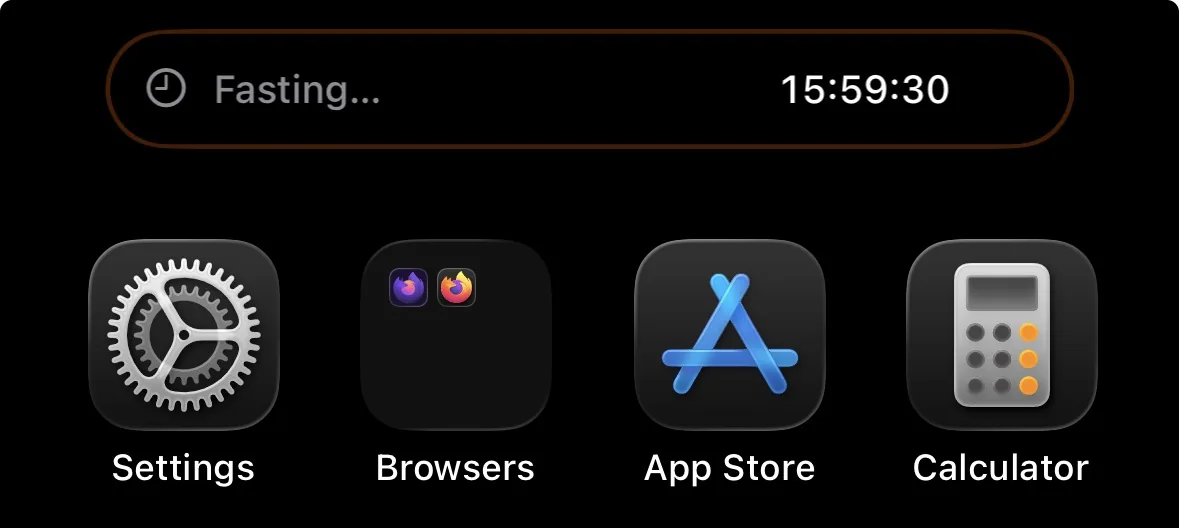
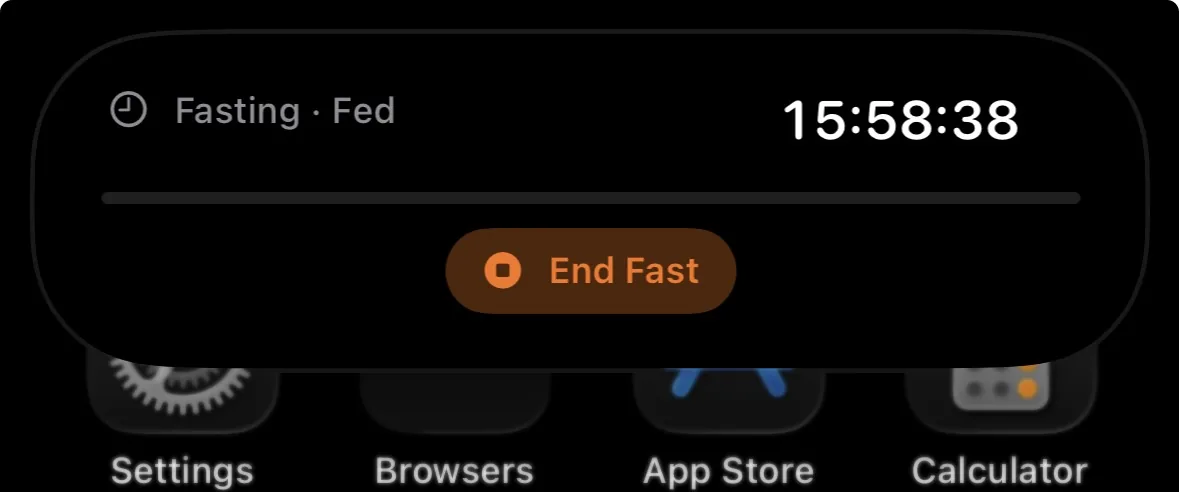
The Dynamic Island needs an iPhone 14 Pro or later. The Lock Screen Live Activity works on any iPhone that runs Tare.
Reports
Reports has its own tab and gives you a longer-term view of your nutrition, expenditure and weight. You choose which nutrients it charts.
Choose a time range: 7 days, 2 weeks, 1 month, 3 months, or 6 months.
Reports include:
- Daily averages — average calories, protein, carbs, and fat per day over the selected period
- Calorie bar chart — daily calorie intake visualized as bars, with optional grouping by day, week, or month
- Macro progress — how your average intake compares to your goals (protein, carbs, fat)
- Micronutrient averages — daily average intake vs target for all vitamins and minerals, sorted by gap severity. On the 7-day view, tap any below-target nutrient to open personalized food suggestions
- Weight trend — a sparkline chart of your weight entries with your goal weight shown as a reference line, plus the total change over the period
Apple Health
Tare integrates with Apple Health (HealthKit) for bidirectional data sync. Toggle it on in Profile.
Tare writes to Health:
- Dietary energy (calories)
- Protein, carbohydrates, fat, fiber
- Water intake
- Caffeine and alcoholic drinks
- Weight and body fat, when weight sync is on
- Workouts with their active energy — exercise you add to your day and, with Workouts on, your training sessions
Tare reads from Health:
- Weight, body fat and lean mass (from smart scales or manual entries in Health)
- Nutrition and water logged by other apps and devices (counted toward your daily total, never double-counted)
- Active energy — for the Activity Bonus and the 30-day starting estimate, when enabled
- Workouts recorded on Apple Watch, with heart rate and energy, when Workouts is on
Health sync and weight sync can be toggled independently. When you delete a log entry in Tare, the corresponding Health sample is also removed.
All Health data stays on your device and is handled entirely by iOS — it's never sent to us or any third party.
Profile & Settings
The Profile tab is where you configure Tare to fit your needs:
- Appearance — choose System, Light, or Dark theme
- App Icon — eight marks (leaf, apple, carrot, avocado, cutlery, plate, kitchen scale, nutrition ring), each in a dark version and a light one, plus Ocean and Violet. Works on iPhone and iPad
- Units — metric or imperial, once for everything or separately for food, water and body (and, with Workouts on, lifting)
- Body stats — current weight, goal weight, height, age, biological sex
- Activity level — Sedentary, Light, Moderate, or Active (with multiplier descriptions)
- Fitness goal — Lose fat, Maintain, Build muscle, or Athletic. Changing this suggests updated macro targets
- Computed stats — BMR, TDEE, and BMI are calculated automatically and shown with color-coded indicators
- Meal Categories — create, reorder, and customize meal categories
- Supplements — manage your supplement list and nutrition links
- Timing groups — manage timing groups and reminders
- Apple Health — toggle health sync and weight sync
- Export — export your data as CSV
What Else Tare Does
Smaller things that are easy to miss:
- Apple Watch — see today's calories and macros, log water, take your supplements and start or end a fast from your wrist. Everything goes through your iPhone.
- Your language — Tare and its food search speak English, Russian, Ukrainian, Polish and Spanish.
- Ask AI — from the day menu, Tare writes a question about your day or week and opens it in the assistant you choose. You read it first; Tare has no AI inside.
- Untracked days — mark a day you didn't log, and Reports averages and the weekly check-in skip it.
- Copy to — copy a meal or an entry to another meal or another day, or copy it and paste it where you want it.
- Share your library — send foods, recipes and templates to another Tare over AirDrop or Messages; the person who opens the file picks what to keep.
- Import a recipe — paste a link to a recipe page and Tare reads the ingredient list, matches each line to a food and marks what to check.
- Scan on the Foods tab — keep a product in My Foods without logging it.
- Icons — give foods, recipes and templates a symbol and a color of your own.
- Household portions — log a cup, a slice or a medium egg; Tare knows the grams.
- Amount calculator — type 2 × 85 or 320 − 140 right in an amount field.
- Quick Add — every meal's last row offers Quick Add beside Add food, for calories from a menu.
- Body composition — with body fat from a smart scale or typed into a weigh-in, Reports shows how much of a change was fat and how much was lean mass.
- Your Reports charts — choose which nutrients Reports charts.
- Exercise credit — off by default. Turn it on and exercise you log, or workouts from Apple Health, raise the day's calorie budget.
Workouts (beta)
Workouts is a strength log and planner, in beta. It is off by default: turn it on in Profile → Workouts and a Workouts tab appears between Foods and Reports. It needs iOS 26.4; the rest of Tare runs on iOS 17.4 and later.
The exercise library. Over 600 exercises with how-to animations and instructions are a separate download, in Profile → Workouts → Exercise Library. Everything else works without it; the download adds the animations, the instructions and the muscle figure — male or female, your choice.
Up Next and Saved workouts. Up Next builds today's session from your gym, goal, split, available minutes, experience and muscle recovery, and says why; switch it, replace an exercise or edit its sets before you tap Start. Saved workouts are your own routines, with target sets, reps and rest per exercise, started in a tap.
The rest timer runs in the app, on the Lock Screen and in the Dynamic Island — with Log set and Skip rest — and on Apple Watch, where the Workout page's Done logs the set.
History. Every workout keeps its sets; open one in History to edit a set or add one. Each exercise keeps your records: best weight, best reps and estimated one-rep max.
Importing from Fitbod. In Fitbod, open Settings → Export Workout Data and save the file. Then in Tare choose Profile → Workouts → Import from Fitbod and pick it.
Apple Health and exercise credit. Finished workouts are written to Apple Health, and workouts recorded on Apple Watch appear in History with heart rate and energy. Exercise credit is off by default; with it on, a workout's calories count toward your day. Workouts sync through iCloud like the rest of Tare, but they are not in Export All Data yet.
Exporting Data
Go to Profile → Export All Data to export your data. The export is a single zip of CSV files covering your food log, weight, water, supplements, fasting, daily check-ins, and goals — everything you logged for nutrition, fasting, weight and supplements, with nothing to pick. Workouts are not in the export yet.
The export uses the iOS share sheet, so you can save to Files, send via email, AirDrop, or open in any spreadsheet app.
Your data is also accessible via Apple Health (if sync is enabled) and persists in your iCloud account, so you always have multiple ways to access your information.
What happens after the trial?
Tare is free to try for 7 days. Everything is included — there is no reduced version.
When the seven days are up, logging pauses until you unlock Tare with a single payment. There is no subscription and nothing else to buy afterwards.
Nothing you recorded is lost. Your log, foods, recipes, weight and everything else stay exactly where they are — on your device and in your own iCloud — and Export my data on the unlock screen writes the whole thing out as a zip of CSV files whether or not you buy. Anything Tare wrote to Apple Health is still in Apple Health.
If you bought Tare before it became a free download, you keep everything and see none of this.
iCloud Sync
Tare syncs your data via iCloud CloudKit automatically. This means:
- Your data stays in your iCloud account — we never see it
- It syncs across all your Apple devices signed into the same iCloud account
- If you delete the app, your data persists in iCloud and will restore when you reinstall
Make sure iCloud is enabled for Tare in your device's Settings → [Your Name] → iCloud → Apps Using iCloud.
Tips
- Use favorites — star your most-logged foods for quick access from the search screen
- Save meal templates — if you eat the same breakfast every day, save it as a template and log it in one tap
- Create custom categories — if you eat six meals a day, create categories that match your schedule
- Weigh in grams — it's the most accurate unit. A cheap kitchen scale makes a big difference
- Log as you eat — it's easier to remember portions in the moment than at the end of the day
- Use recipes for batch cooking — build the recipe once, weigh your portion each time, and log it in seconds
- Copy the previous day — if you eat similar meals, use the copy feature from the Daily Log menu to duplicate yesterday's entries
- Link nutrition to supplements — if your protein powder has 120 calories, link it so checking it off also tracks the calories
- Check Reports weekly — daily numbers fluctuate, but weekly averages show the real trend
- Set up supplement reminders — if you keep forgetting your vitamins, a timed notification helps build the habit
- Log weight consistently — weigh yourself at the same time each day (morning, after bathroom) for the most meaningful trend